How to Take Product Photos with Your Phone at Home
Take clear product photos with your phone. Set up light and a background, keep the camera steady, preserve real colours and check before publishing.
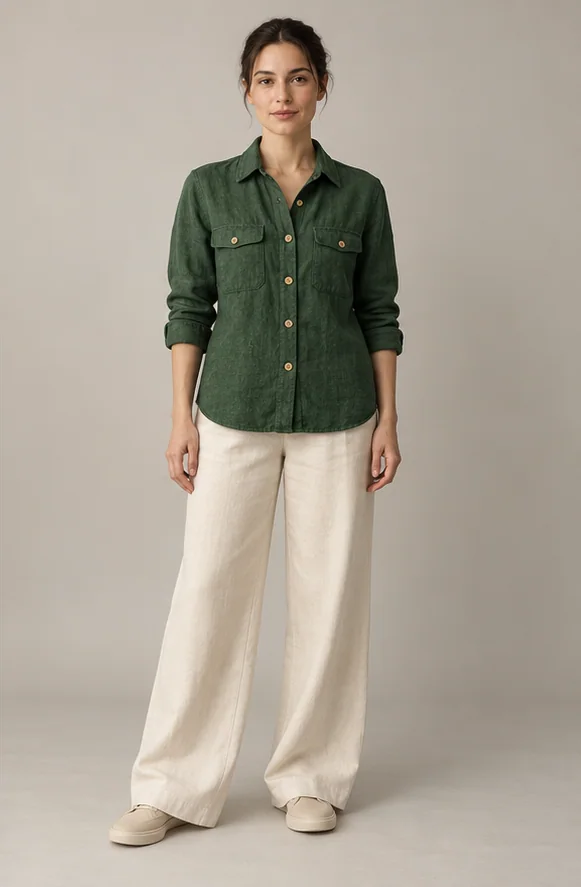

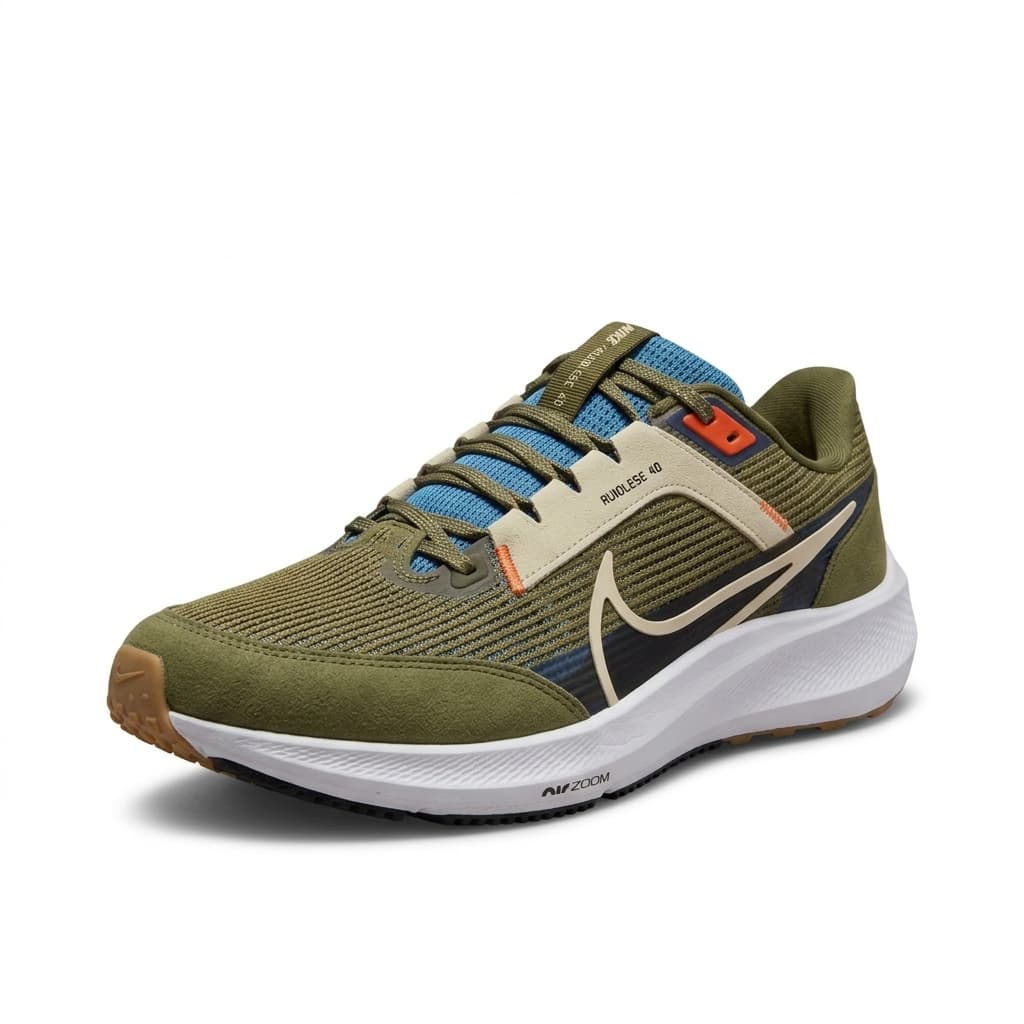
You do not need to buy an expensive camera to start photographing products. Begin with your phone, a tidy space and suitable light. Help shoppers understand the real item's colour, size and details. Try one product first, then reuse the setup for a consistent collection of photos.
Start with soft light
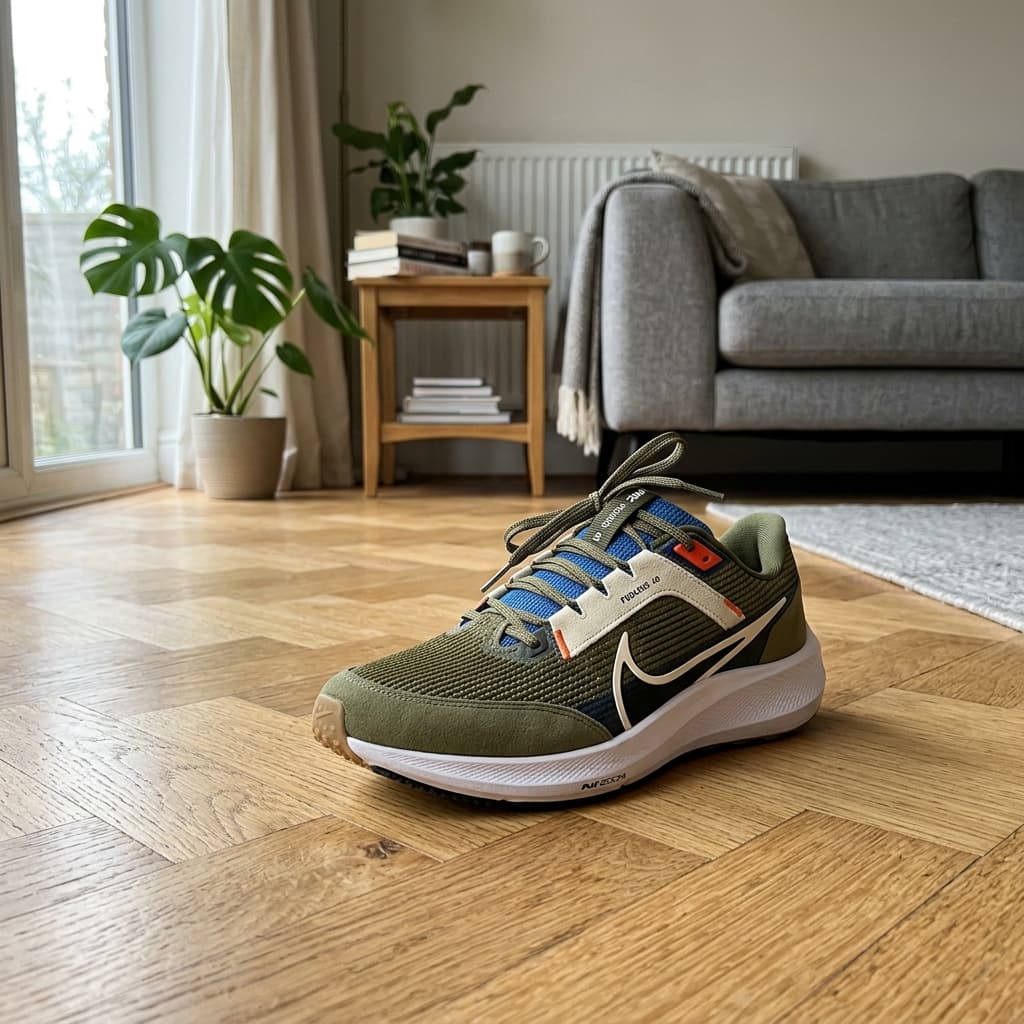
Place the product beside a window. If direct sunlight creates hard shadows, soften it with a thin curtain. Put white card on the darker side to reflect light. Avoid mixing yellow room light with daylight and turn off the phone flash. Check a test shot for glare and shadows. Without a window, use a lamp that lights the item evenly.
Prepare a clean background
Remove distracting objects. Curve a sheet of white paper between the table and the wall to hide the corner. Clean the product, surface and phone lens. Check reflective products for unwanted reflections of the room. Choose the main photo's background using your category's rules; the same background is not required everywhere.
Keep the phone steady
Use a phone holder or firm support. Tap the product on the screen to focus and use the timer to avoid shaking the camera. Move the phone instead of using digital zoom, and avoid getting so close that the shape looks distorted. Enlarge a test shot to check labels and edges. Retake a blurred photo rather than trying to fix it later.
Show useful angles
Keep the whole item in the frame with space around its edges. Hold the phone level at a suitable height. Add front, back and detail shots where useful. Show stitching, closures, connections or included parts that a buyer needs to understand. Keep scale references and scenes showing the item in use in extra photos where the marketplace allows them.
Preserve colour and detail
Straighten the photo, crop spare space and adjust brightness gently. Compare the screen with the actual product. Avoid filters that change its colour; do not remove patterns, writing or genuine defects. When editing a background, check that thin edges have not disappeared. Keep the original file and edit a separate copy.
Check the uploaded result
Check the seller panel for current size, file and category requirements. Upload a high-quality file rather than a compressed messaging copy. View it at full size and on a small screen, checking the correct colour and product version. After publishing, open the listing and correct any unexpected cropping or photo order.
Current marketplace guides
Your next guide
Amazon and Trendyol Product Photos: Main Images and Final Checks